
How to use Thainament
Step by step, with real screenshots — for players entering a tournament, checking their status and following the results.
Note: Every screenshot in this guide is a real screen from the product. The tournament names and entrant names inside them are sample data made up to demonstrate the product — they are not real tournaments or real people.
For players
Enter a tournament, check your status, pay, and follow the results.
*The tournament and entrant names in the screenshots are sample data, not real tournaments or real people.
Find a tournament
Start on the home page. You can see every tournament currently open for entry, anywhere in the country, without signing in.
- Step 1
Open the Thainament home page
The home page carries four main shortcuts and a search box for tournaments that are open for entry. Below that are the featured tournaments and the ones being played right now.

Tap to view the full-size image - Step 2
See every tournament, and filter it down
Tap “All tournaments” to see everything in the system. Filter by province, by date, or by whether entries are open.
This is the real component, not a screenshotThe tournament ticket you see on the home and tournaments pages, with example data Every part, named
Tournament name
tournaments.name
The full name. Tap the ticket to open the tournament page.
Playing date
start_date
When play starts — not the entry deadline. Each category carries its own deadline on the tournament page.
Entry status
registration_phase
Whether entries are still open. Once they close, the enter button is gone.
TNMR rated badge
tournaments.rated
This badge means results count towards TNMR, which requires an account and the name on your profile.
Important: The list is ordered by what you can act on — tournaments open for entry come first, then the ones being played, then the ones already finished.
Read the tournament details
Tap a tournament's name to see everything about it before you decide to enter.
- Step 1
Read the tournament information
The detail page gives the dates, the venue, the organizer, and every category with its entry fee and number of places — along with any rules the organizer has set.

Tap to view the full-size image - Step 2
Check whether entries are still open
The status badge under the name says whether entries are open, entries are closed, the event is being played, or it has finished. While entries are open, the entry button appears on this page.

Tap to view the full-size image Important: Some tournaments need an invite code from the organizer, and some are TNMR rated, which means you must have an account before you can enter.
Enter a tournament
Fill in the entry form on the tournament's own page. An ordinary tournament does not need an account at all.
- Step 1
Pick a category and give your contact details
Choose the category you want. The page shows how many people have entered against the number of places. Then give a contact name and a phone number — those two fields are required.
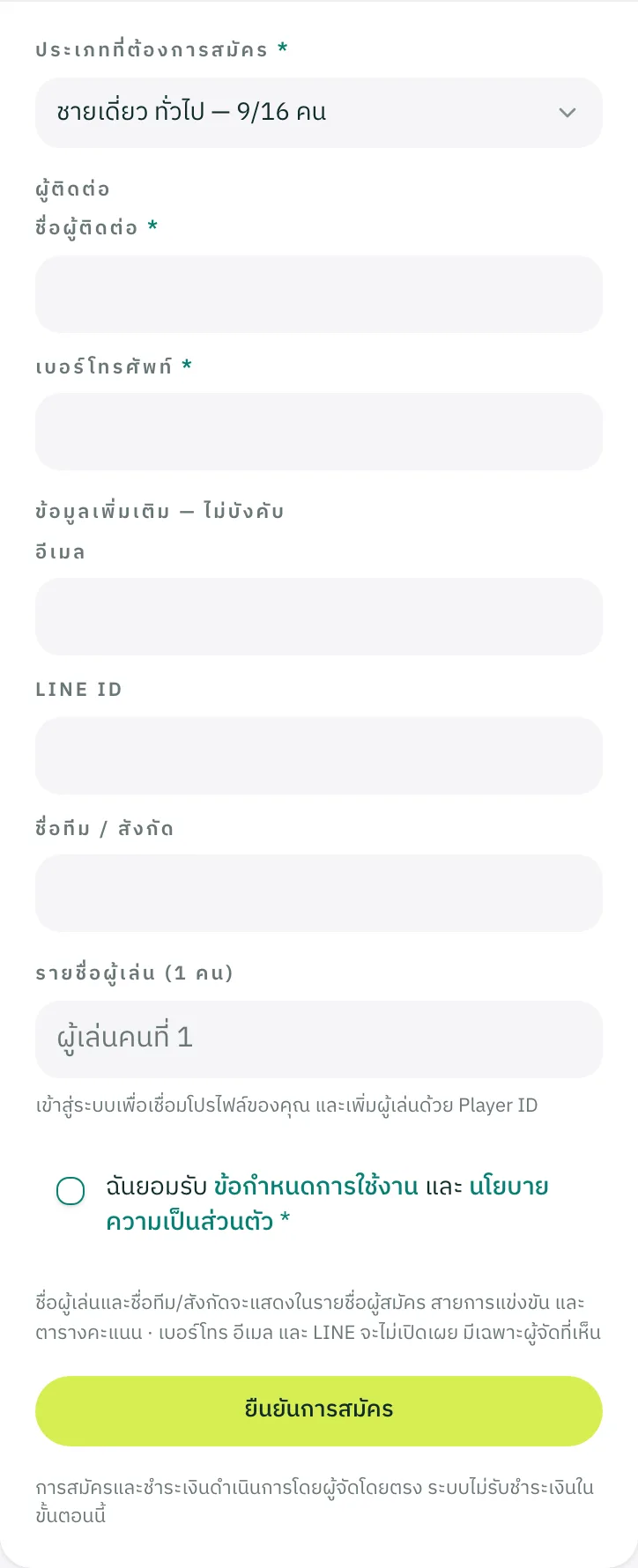
Tap to view the full-size image Important: Your phone number is what finds your entry later, so get it right · Player and team names are shown publicly in the entry list and the draw, but your phone number, email and LINE ID are visible only to the organizer.
- Step 2
Confirm, and keep your reference code
As soon as you confirm, you are given a reference code. Keep it together with the phone number you entered with — the two of them are what open and change your entry later.
Important: Payment is handled by the organizer directly. Thainament does not take payment on the organizer's behalf at this step.
Check your status and pay
The “Check registration” page is where you see your entry's status, attach a transfer slip, and find your reference code.
- Step 1
Find your entry
Give the reference code and the phone number you entered with, and the page shows you that entry.
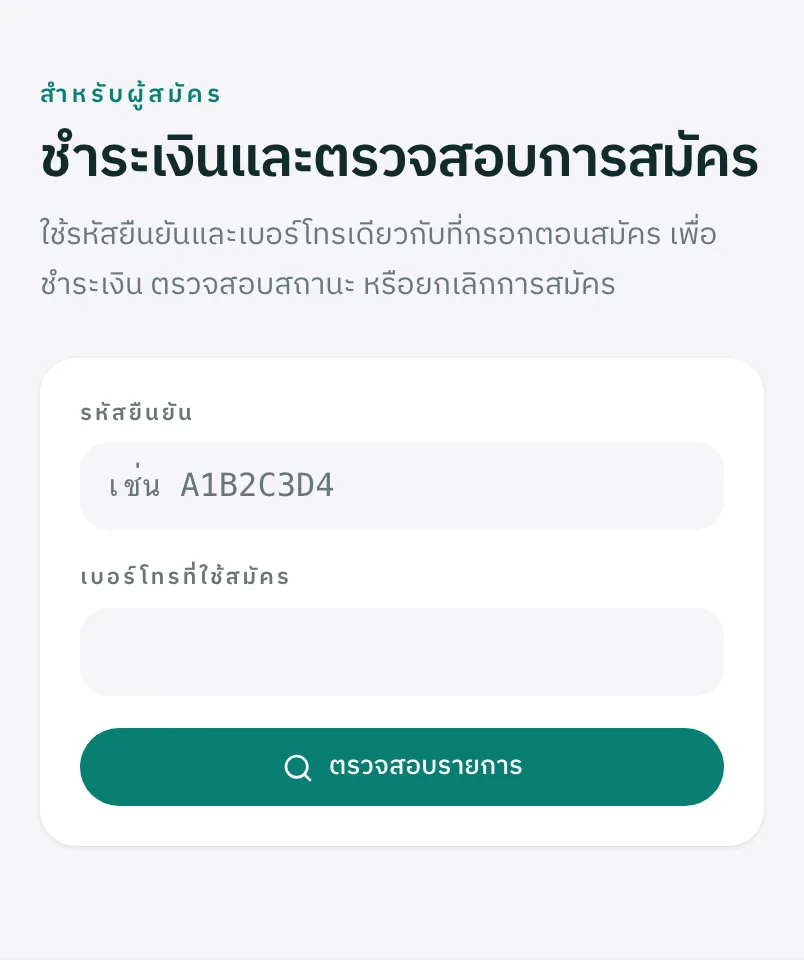
Tap to view the full-size image - Step 2
See the status and attach your transfer slip
This page says whether you are unpaid, awaiting confirmation, or paid. If the organizer set an entry fee, you can upload your transfer slip here, and the organizer is the one who confirms it.
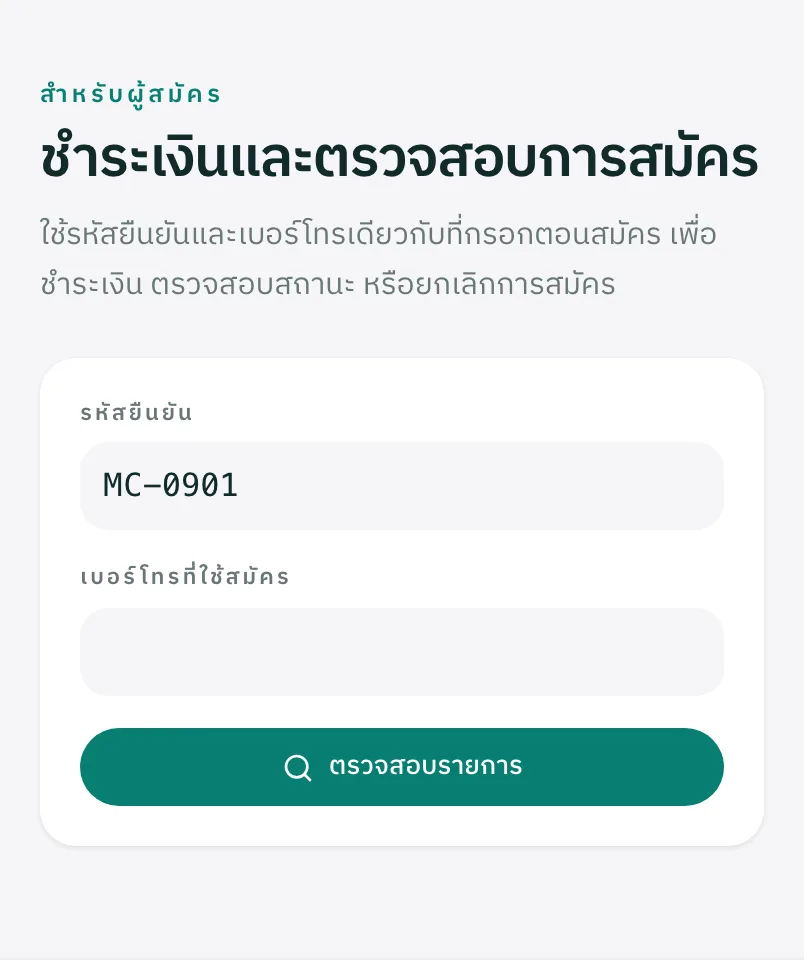
Tap to view the full-size image Important: If the organizer rejects a slip, the reason is shown to you and you can upload another one.
Follow the draw, the results and the podium
Once the organizer has made the draw, anyone can follow the bracket and the live results from the tournament's page.
- Step 1
Open the “Draw and results” tab
Pick the category you want. You get the standings table (for a round-robin) or the knockout bracket, with the podium once the event finishes. Results update by themselves while play is on.
Win 2 points · loss 1 point · no-show or walkover (the losing side) 0 points · entrants level on points are separated by the results between them (a mini-league) → games won/lost → points won/lostEntrant 1 2 3 4 Played Won Lost Games W/L Points W/L Match pts Rank 1.สมชาย ใจดี 3–1 2–3 3–0 3 2 1 8/4 120/97 5 1G 2.ปรีชา ทองดี 1–3 3–2 3–1 3 2 1 7/6 122/121 5 3G 3.นภา ศรีสุข 3–2 2–3 3–0 3 2 1 8/5 129/113 5 2G 4.วีระ พงษ์ไทย 0–3 1–3 0–3 3 0 3 1/9 67/107 3 4 Scroll the table left and right to see every result
- G
- Level on points and still level between themselves — decided on the ratio of games won to lost, counted only among the tied entrants
- Rank 1–3
- games won/lost, among the tied entrants only — สมชาย ใจดี 5/4 · นภา ศรีสุข 5/5 · ปรีชา ทองดี 4/5
How entrants level on points were separated
This is the real component, not a screenshotThe real standings table from the tournament page, with example data where the top three finish level Every part, named
Entry number
entry_no
The number before the name is the entry order, not the rank — rows stay in entry order and are never re-sorted by result.
Result cell
competition_match_games
Where two players meet, read as “games this row won–games the opponent won”. The diagonal is blank because nobody plays themselves.
Points
ITTF · win 2 · loss 1 · absent 0
The number that actually orders the table — not matches won, and not games won.
Rank
standings[].rank
The right-hand column, medals for the top three. This is the result after tie-breaks, not the order of the rows.
Tie-break mark
H · R · G · P · !
The small letter after a rank says which criterion settled a tie — H head-to-head, R rubbers, G games, P points, ! drawing lots. Tap it for the deciding figures.
Important: Results stay visible for a period the organizer sets after announcing them. After that the tournament is archived.
Follow your own tournaments
Once you are signed in, every tournament you have entered is gathered in one place — no reference code to type in each time.
- Step 1
See everything you have entered
Each entry shows the category, the dates, the reference code and the payment status. Filter down to upcoming or past events, and search by tournament name from the box at the top.
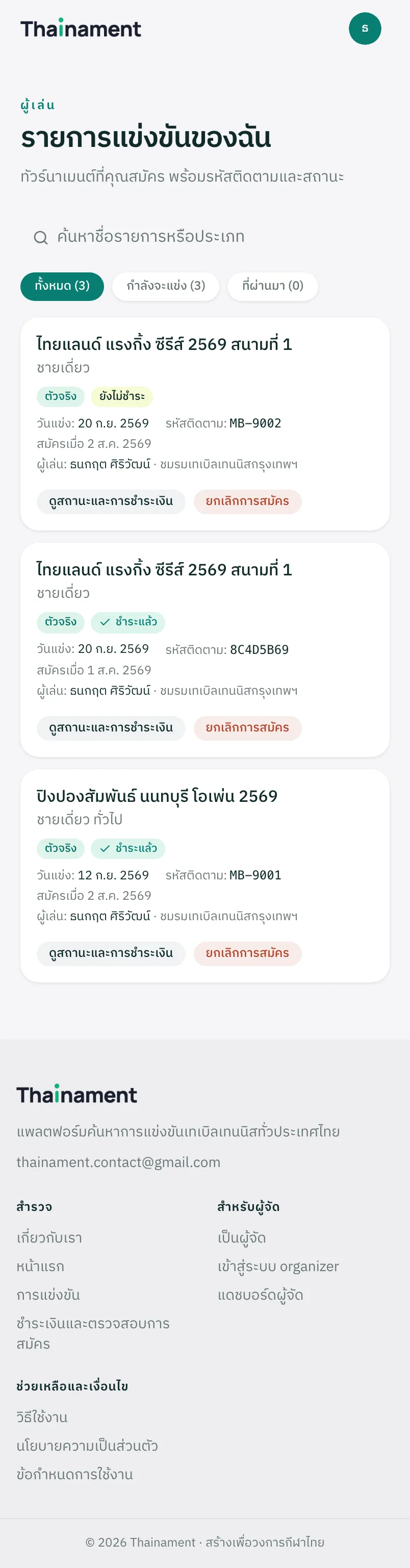
Tap to view the full-size image Important: There are three payment states — unpaid, awaiting confirmation, and paid · A tournament with no entry fee shows none of them.
- Step 2
Open an entry, or cancel it
Tap “Status and payment” to go straight to that entry's page, without typing the reference code and phone number again — or cancel the entry if you are no longer playing.
Important: You can only cancel before the organizer closes entries or makes the draw. After that you have to contact the organizer directly.
Your account and TNMR rating
An account is not needed for an ordinary tournament, but it is needed if you want to earn a TNMR rating and keep a record of your own results.
- Step 1
Create an account, or sign in
Sign up with an email address or sign in with Google. Once you have an account, everything you enter is gathered on the “My tournaments” page without a reference code each time.
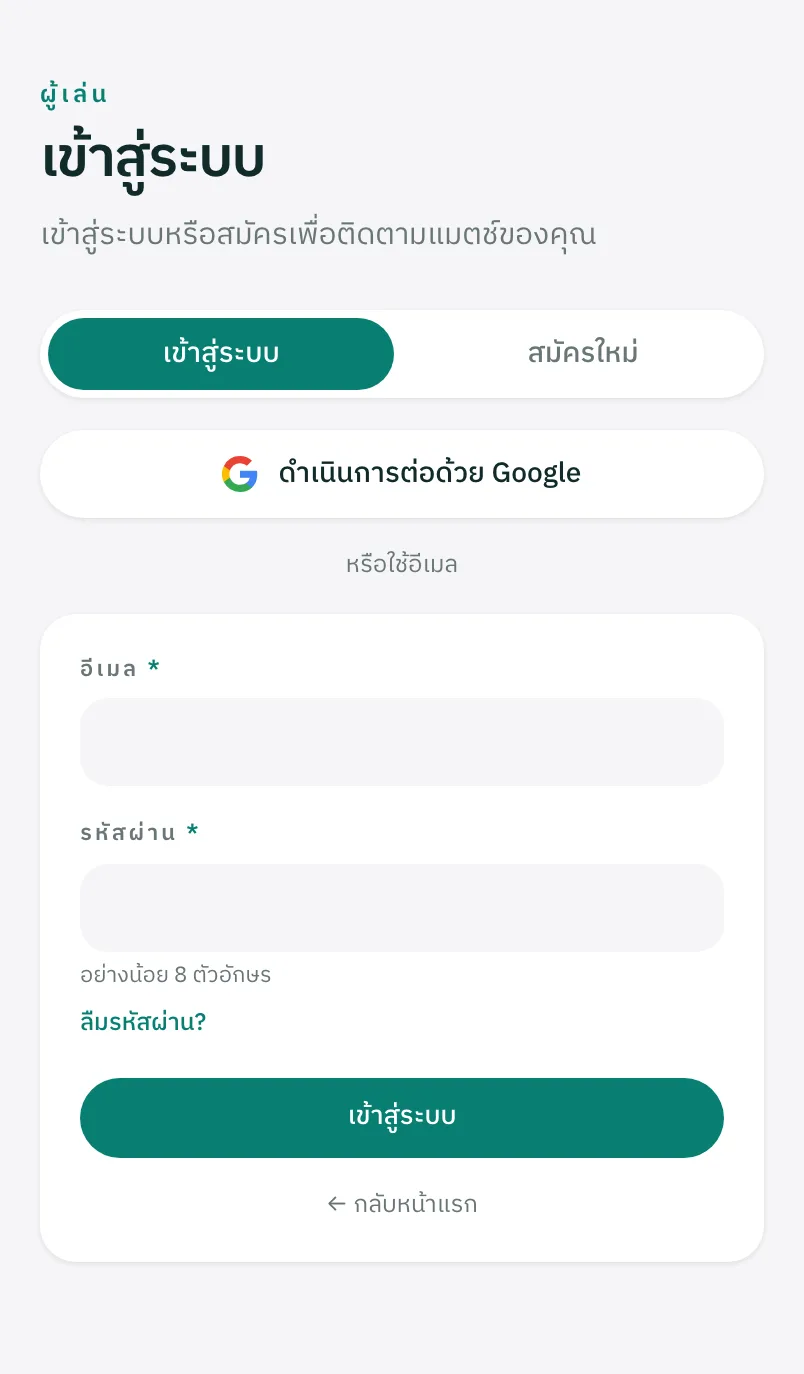
Tap to view the full-size image Important: A TNMR rated tournament has to be entered while signed in, and your player name is taken from your profile.
- Step 2
Set up your player profile and see your rating
Your profile holds the name you play under, your club, and the Player ID a friend uses to add you as a partner or a team member. If you play rated tournaments, your TNMR rating and your results history live here.
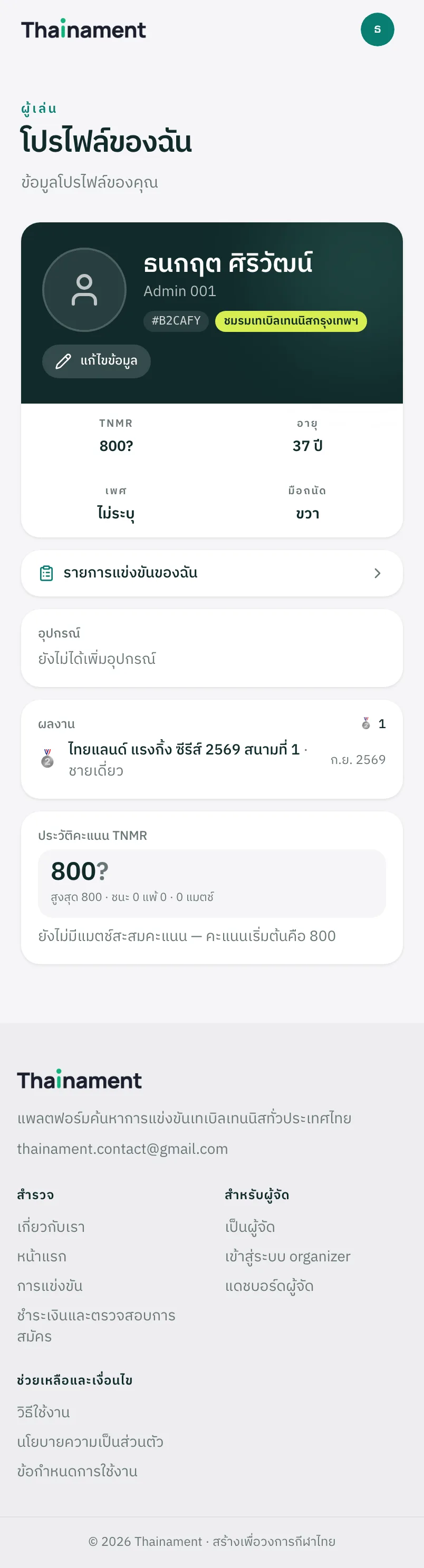
Tap to view the full-size image Important: Your Player ID is what other people use to bind you into a doubles or team entry. It is safe to share — it is not a password.
For organizers
Create a tournament, open entries, make the draw, record results, and export reports.
*The tournament and entrant names in the screenshots are sample data, not real tournaments or real people.
Become an organizer
An organizer account is opened with an organizer key issued by an admin. It is not open to self-registration.
- Step 1
Sign in with a user account first
The organizer application page always requires you to be signed in. If you have no account yet, create an ordinary user account first, then come back to this page.
Tap to view the full-size image - Step 2
Fill in your organizer details with the key you were given
Once signed in, give your organizer name, your contact details, and the organizer key you received from an admin. Then wait for your profile to be verified.
Important: An organizer key works once, for one account · Only an organizer with a verified profile can publish a tournament at the เก็บคะแนนสมาคม level.
Create a tournament
The organizer dashboard gathers all of your tournaments in one place and tells you what needs attention first.
- Step 1
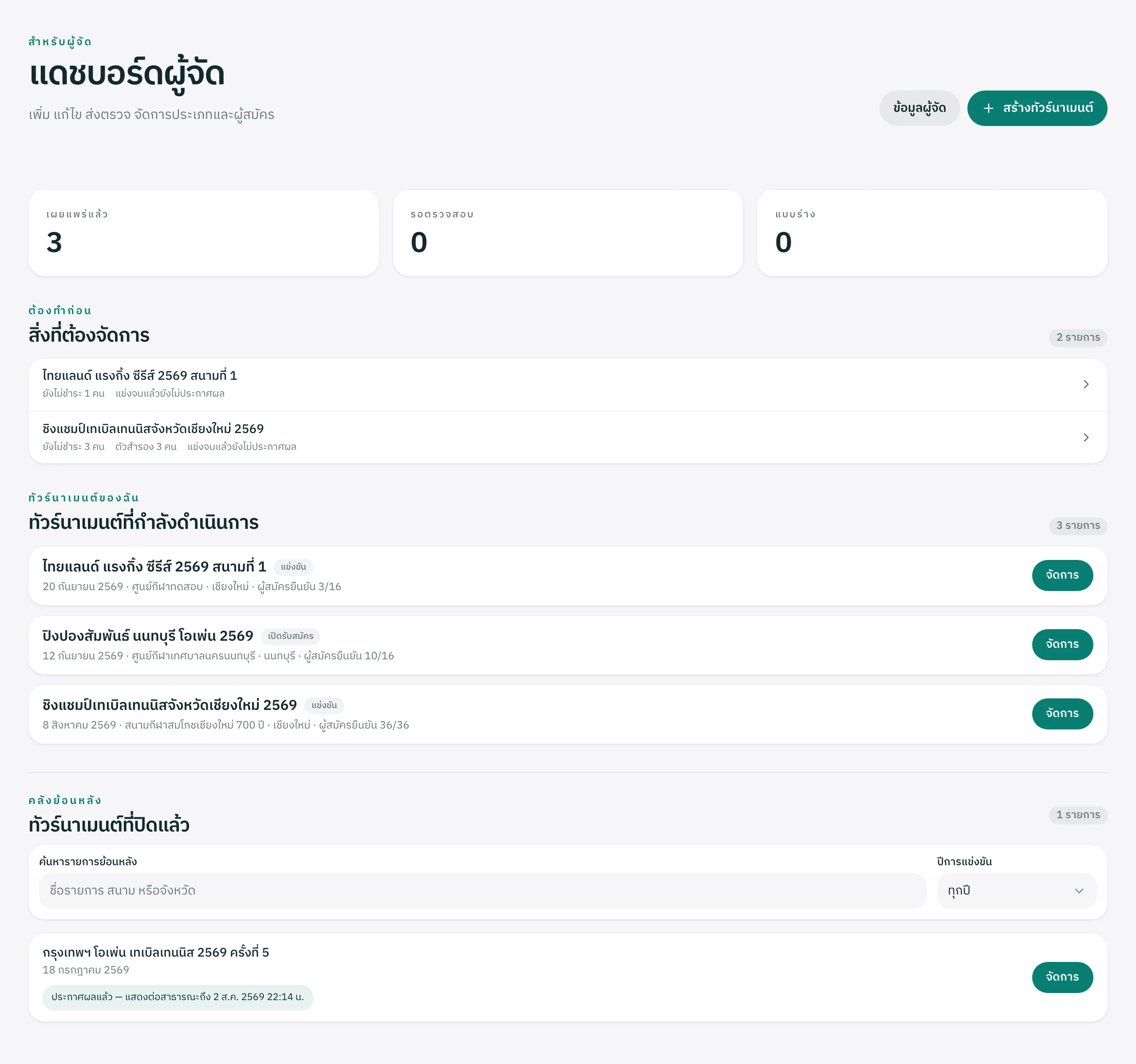
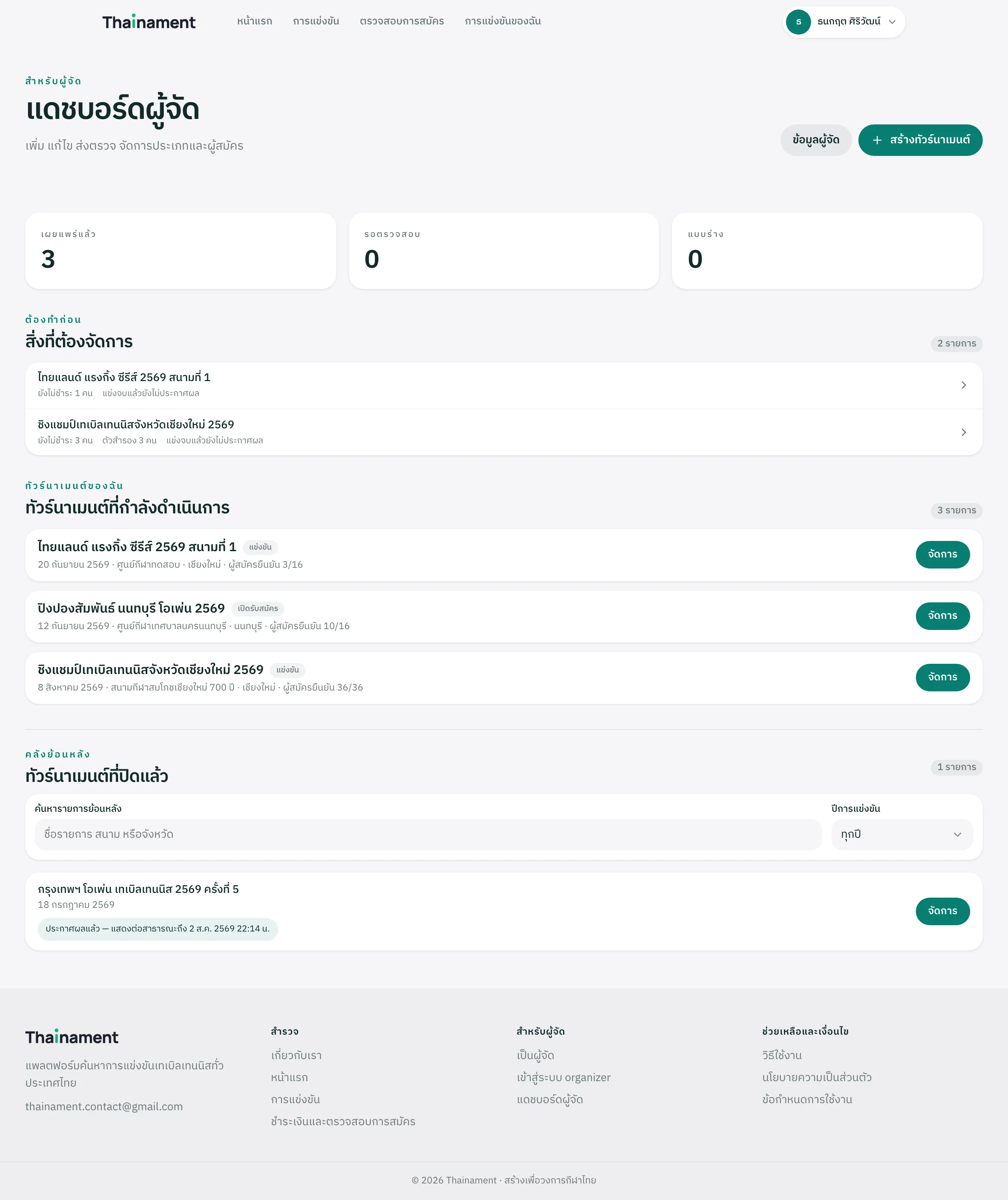
Get the picture from the dashboard
The dashboard separates out “needs attention” first, then the tournaments in progress. Tap Manage to go into one of them.
Tap to view the full-size image - Step 2
Fill in the tournament and its categories
Give the name, the dates, the venue, the province and the tournament level, and add at least one category with its entry fee and number of places.
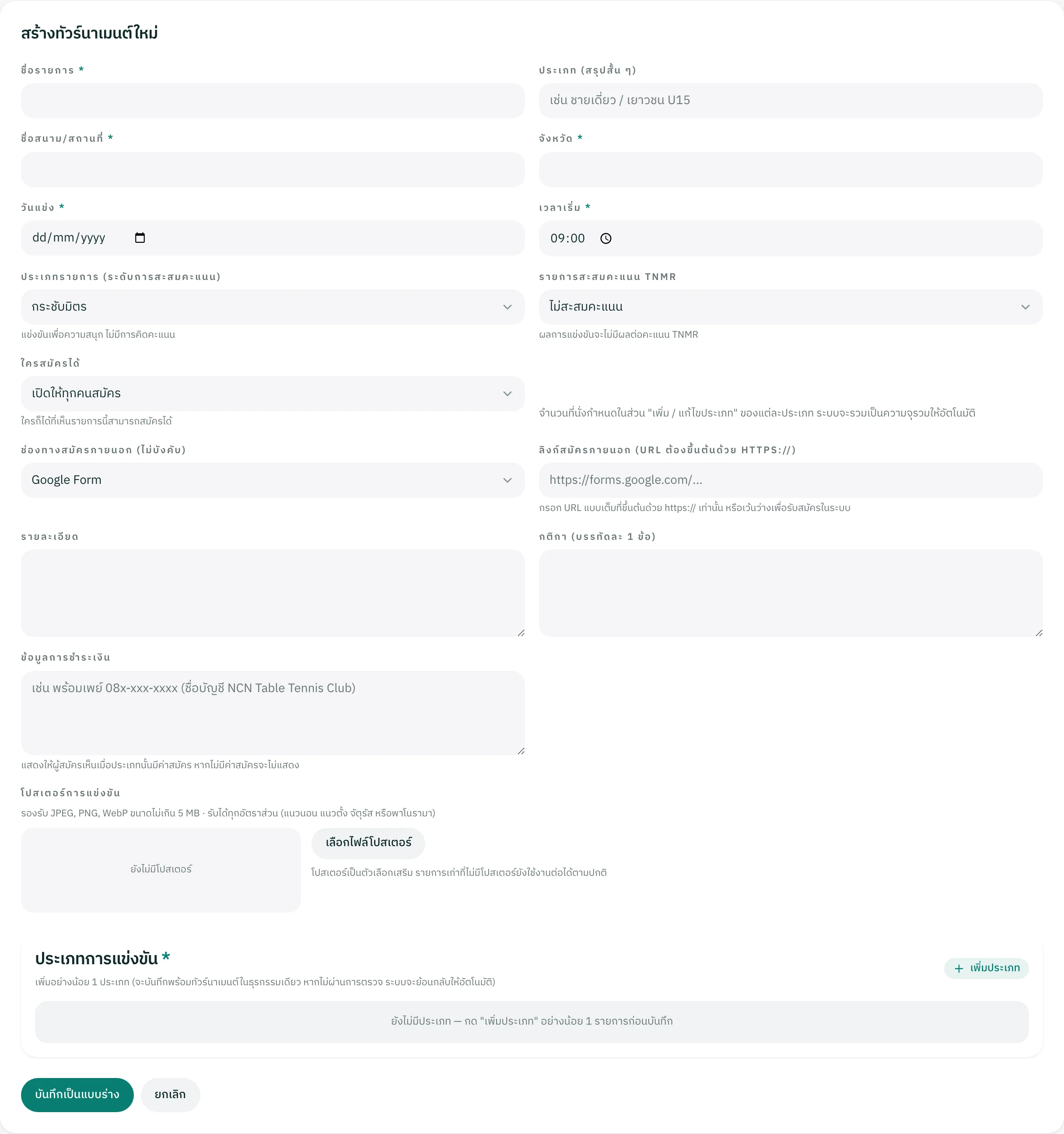
Tap to view the full-size image Important: A newly created tournament is a draft, and an admin has to approve it before it is published publicly.
Manage the categories
Add, edit, or close entries one category at a time, at any point.
- Step 1
Open “Add / edit category”
Each category sets its own format (singles / doubles / team), sex and age group, entry fee and number of places, independently of the others — and opens and closes for entry on its own.
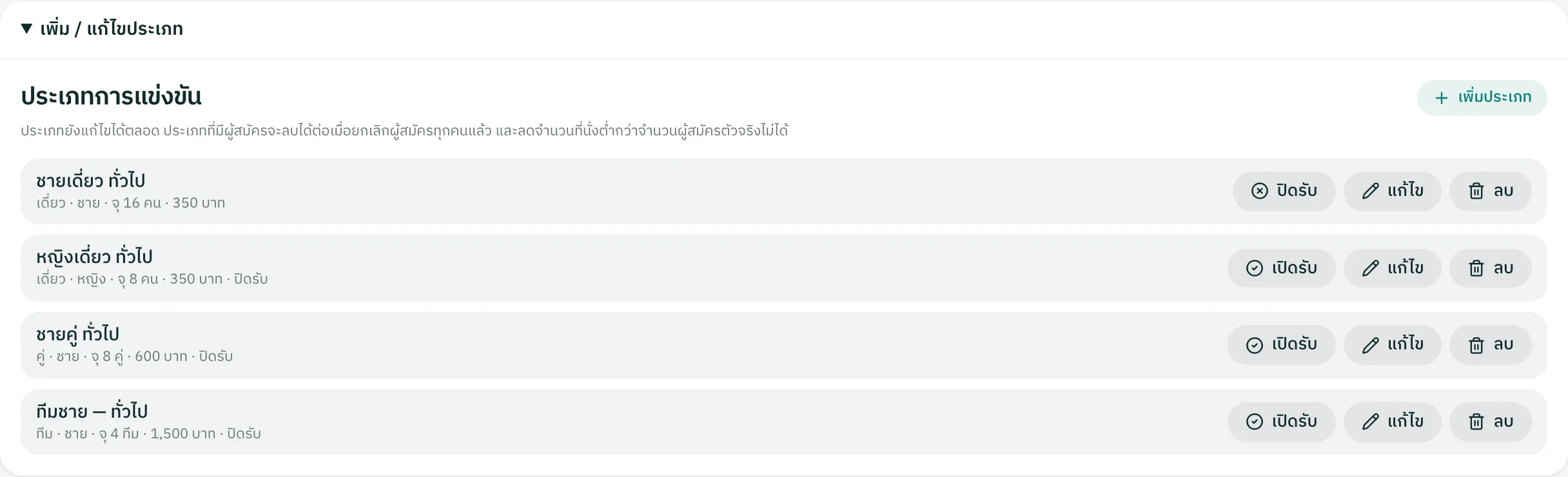
Tap to view the full-size image Important: Entries are only really open when the tournament and the category are open at the same time. Close either one and the player never sees the entry form.
Look after entrants and payment
Every entrant is in the “Entrants” tab of each category.
- Step 1
Check the list, confirm payment, and manage reserves
The table shows the contact, the reference code, the time they entered and their payment status. You can confirm payment, move someone to the reserve list, or delete an entry straight from its row.
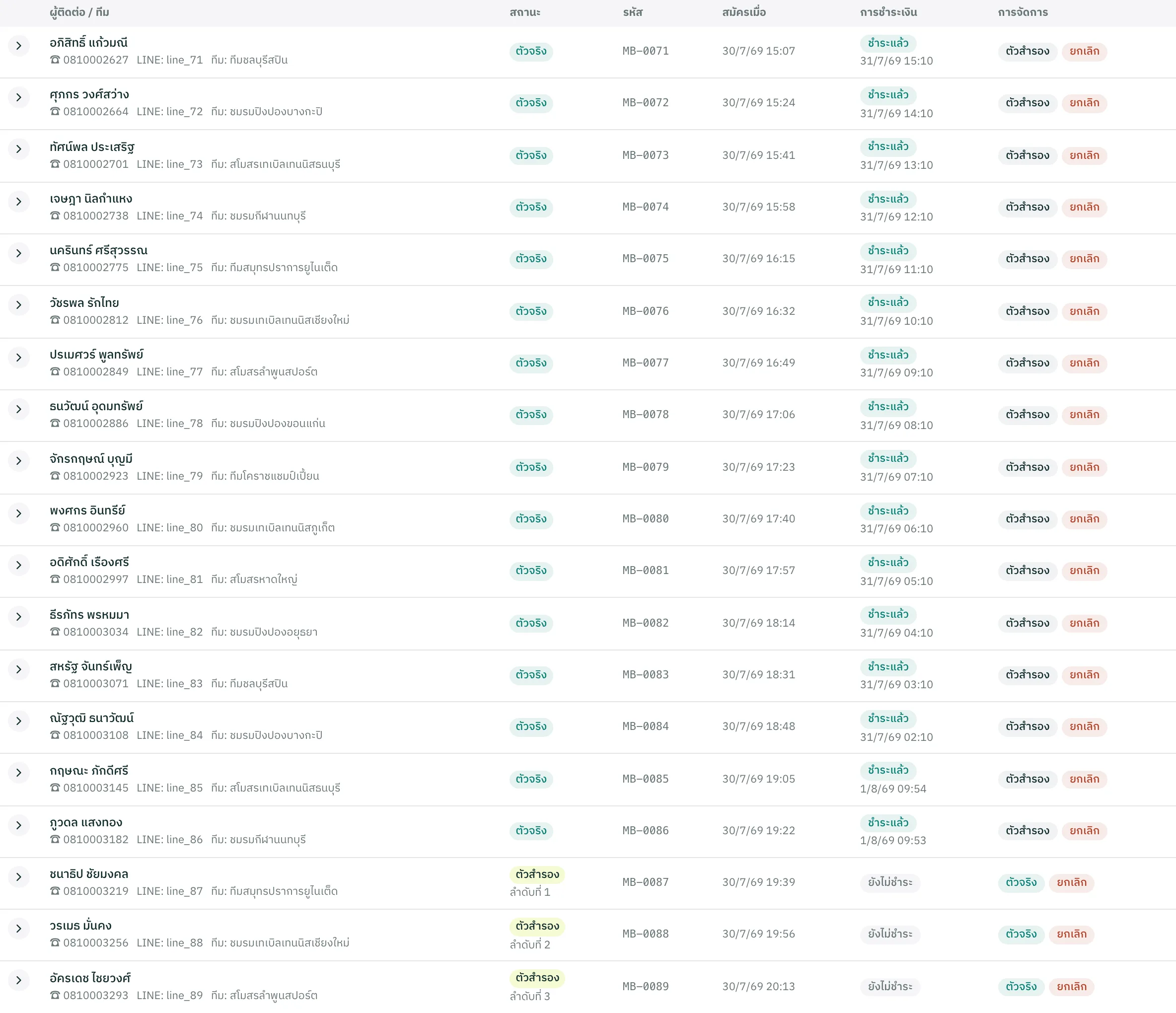
Tap to view the full-size image Important: An entrant's phone number, email and LINE ID are visible to the organizer only. They are never shown publicly.
Make the draw and start play
Once entries are closed, the roster is locked and the draw is made in the format you choose.
- Step 1
Lock the roster, choose a format, make the draw
Choose round-robin, knockout, groups into a knockout, or a points round. Then publish the draw and start play.
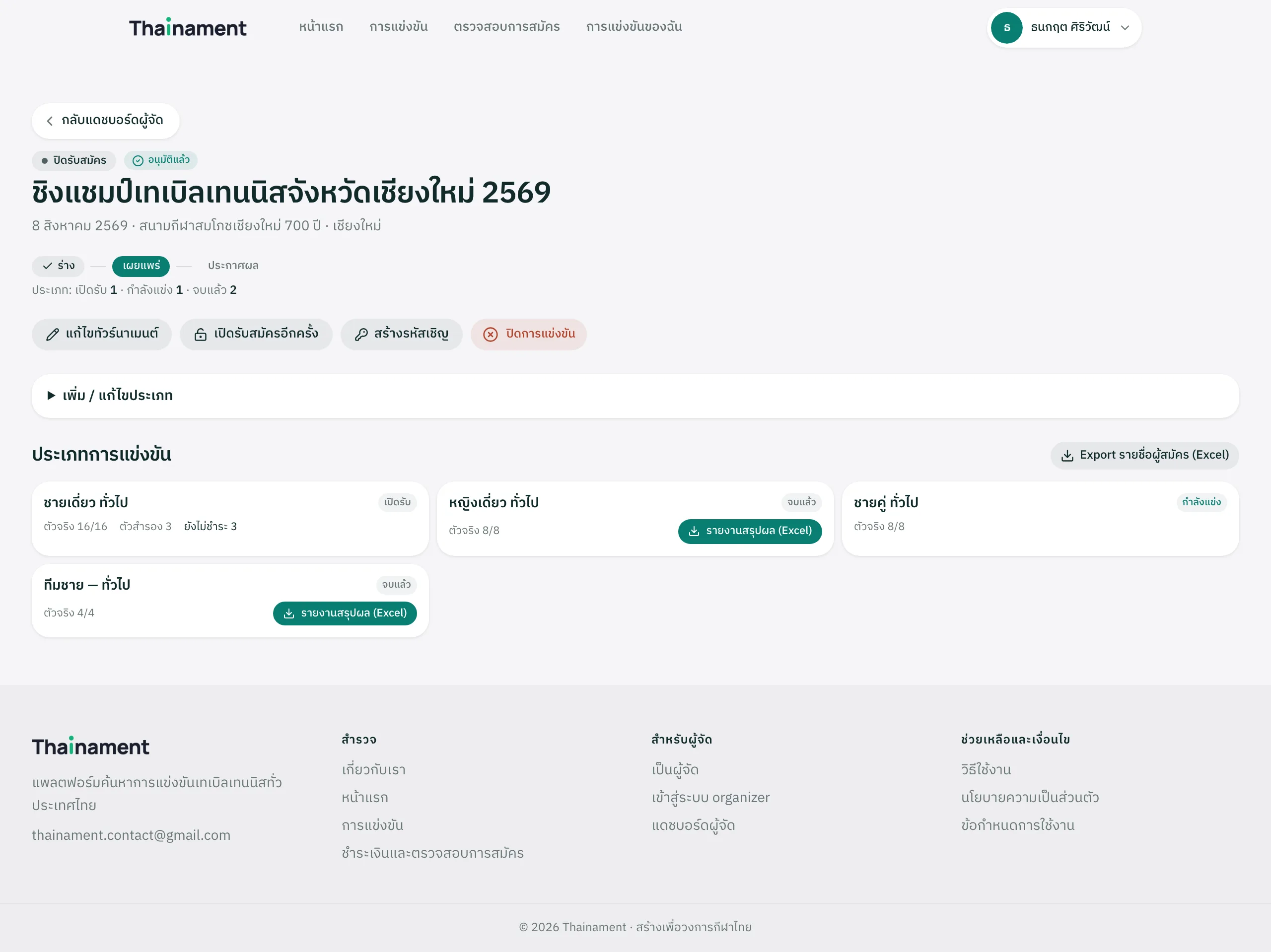
Tap to view the full-size image Important: The category's entries have to be closed before the roster can be locked, and there must be at least 2 confirmed entries.
Record results, standings and the podium
Record results one match at a time from the venue. Spectators see them update immediately on the tournament page.
- Step 1
Record a match score
Every match has a field per game, with buttons to edit or clear the result. The standings table recalculates the order by itself under ITTF rules, ties included.
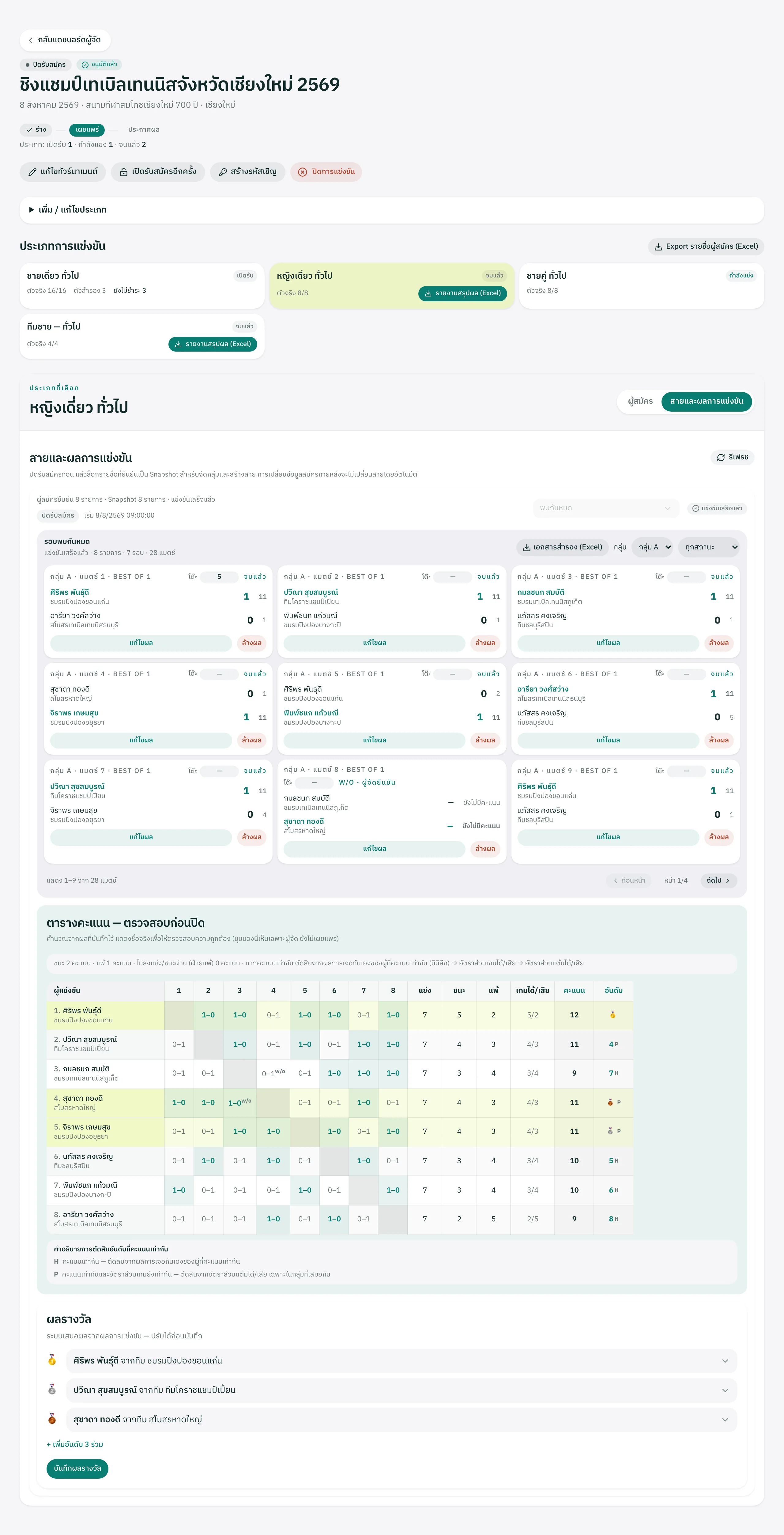
Tap to view the full-size image Important: The letters H and P in the standings table are how a tie was broken — H means it was decided head-to-head, and P means it was decided on the games ratio.
- Step 2
Confirm the podium and announce the results
Thainament proposes 1st to 3rd from the results automatically; you can change any of it before saving. Then close the competition and announce the results so players see them officially.
Important: After you announce, results stay visible for the period you set, and a rated tournament awards its TNMR points when the competition is closed.
- Step 3
Export a report to Excel
Download the entrants for the whole tournament, or a results summary per category, to use as a paper backup at the venue and to hand to the competition desk.
Important: A paper backup earns its keep when the venue's internet is unreliable — print it before the day.
Not running tournaments yet?
An organizer account is opened with a key issued by an admin. Get in touch for a key and start running your own events.